Site Details dialog
The Site Details dialog shows one registered site: its configuration, its client certificate, its tunnel status, and the resource figures its most recent heartbeat carried. Open it from the Sites Dashboard by selecting a row and clicking View Details. An administrator can also change the site's Display Name, Description, Tags and Color here (see Changing a Site).
The Enable / Disable / Delete actions stay on the Sites Dashboard toolbar, and Rotate Certificate sits on the Certificate tab, for administrators only. The dialog auto-refreshes every 15 seconds while open and offers a manual Refresh button. A refresh never overwrites a field you have changed.
Note
View Details is the only way in. A row double-click does something different: it connects to the site, opening its proxied admin console in a new browser tab, which is what the Connect button does for the selected row.
Header section (always visible above the tabs):
| Element | Content |
|---|---|
| Status icon | 3-color glyph matching the grid's status column (green / red / grey) |
| Display name | Bold |
| Site identifier | The UUID (matches cert subject CN), smaller and dimmer |
as of HH:MM:SS |
Timestamp of the snapshot the dialog is currently showing |
Site tab
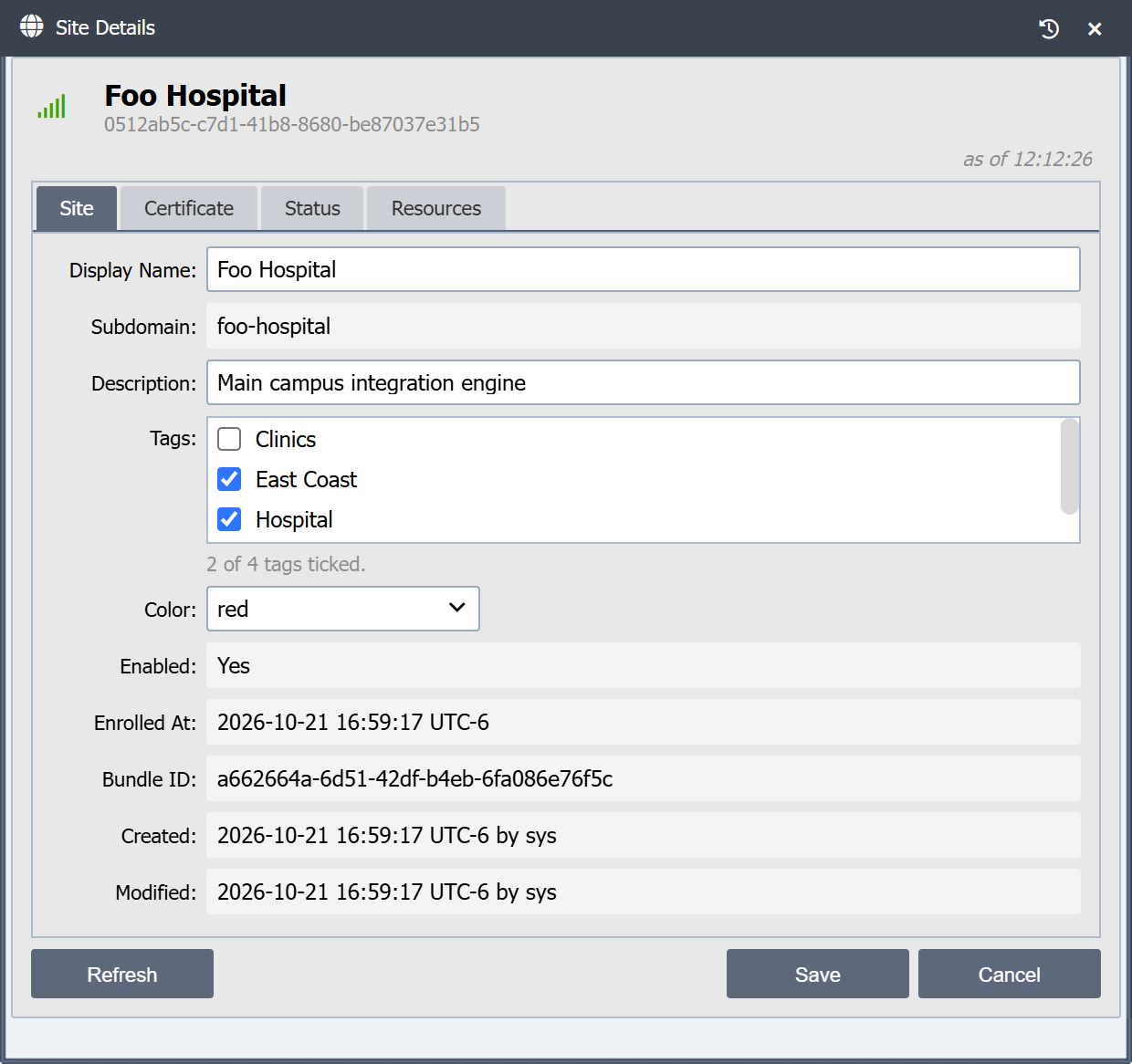
| Field | Source |
|---|---|
| Display Name | hub_site.display_name, at most 255 characters. Editable by an administrator |
| Subdomain | hub_site.subdomain_label. Fixed at enrollment |
| Description | hub_site.description, at most 1000 characters. Editable by an administrator |
| Tags | The tags the site carries, from hub_site_tag. An administrator sees every tag with the site's own ticked, and how many are ticked beneath the list, since the list scrolls when the tags do not fit; anyone else sees the names. All sites is not listed, since every site carries it |
| Color | hub_site.color, one of the zone colors. Editable by an administrator. The site's browser tab shows its favicon in this color, and red keeps the standard icon |
| Enabled | Yes / No |
| Enrolled At | hub_site.enrolled_at |
| Bundle ID | hub_site.bundle_id, the bundle that produced this site |
| Created | created_by_userid + created_timestamp |
| Modified | modified_by_userid + modified_timestamp |
Changing a Site
Change the Display Name, Description or Color, tick or clear Tags on the Site tab, and click Save. The dialog closes, and the Sites Dashboard shows the change on its next refresh. Cancel closes the dialog without saving. A user who is not an administrator sees these fields read-only, with a Close button instead.
Save changes only the tags ticked or cleared since the dialog opened. A tag another administrator put on the site or took off it in the meantime stays as they left it.
The Display Name must be unique. The Hub refuses a name that another site already has, or that a client bundle not yet redeemed is waiting to give a new site. Names are compared without regard to case or surrounding spaces. Sites that already shared a name keep it until one of them is renamed.
A save that changes the Display Name, Description or Color
records a SITE_UPDATED entry in the Audit Log, and
each tag the site gains or loses records a SITE_TAG_ADDED or
SITE_TAG_REMOVED entry. A site that loses a tag loses the access that role
grants for the tag gave there (see
Site Access Grants). The
Display Name and Color also show in the site's own console when it
is reached through the Hub (see
Identifying a Site in Its Console).
Revision History
An administrator opens the site's revision history from the magnifier (Audit Information) in the dialog's title bar. It lists each saved change to the site with who made it and when, and compares any two revisions: the Display Name, Description, Tags and Color, and the site's identifier, subdomain, enrollment, bundle, enabled flag and client certificate serials and dates. Tags lists the tags the site carried at that revision. Putting a tag on the site or taking it off, here or on the Tags page, and deleting a tag the site carries each record a revision of the site and update its Modified time. The revision history only shows changes; it has no Revert. Site changes do not appear in Global Revision History.
Certificate tab
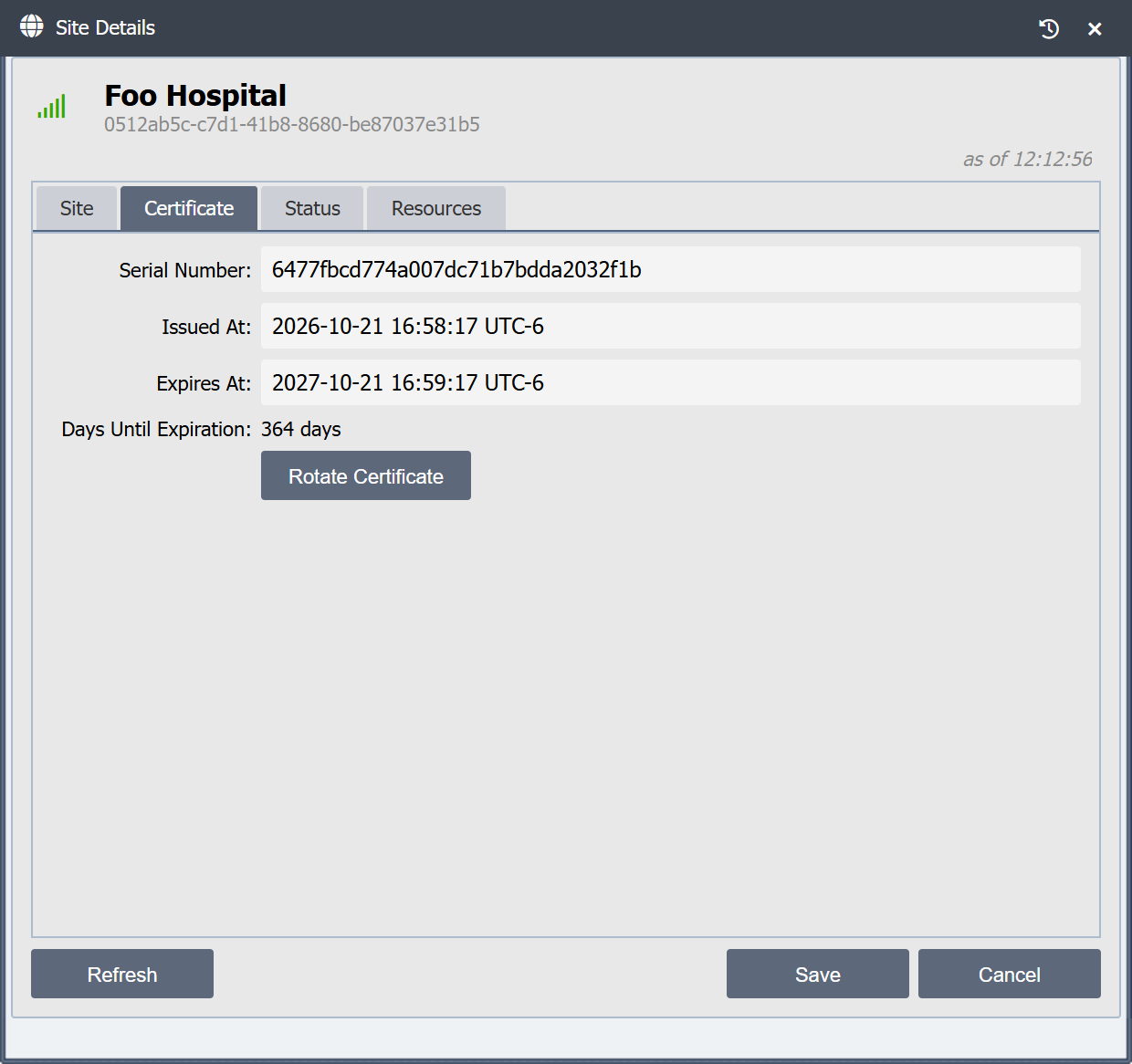
| Field | Source |
|---|---|
| Serial | hub_site.client_cert_serial |
| Issued At | hub_site.client_cert_issued_at |
| Expires At | hub_site.client_cert_expires_at |
| Days Until Expiration | Computed server-side, color-coded |
| Rotate Certificate (button) | Forces a client-cert cycle for this site immediately, instead of waiting for the renewal window. Shown to administrators only. The cycle is delivered over the live tunnel, so for a site that is disabled or not connected the button says so instead. See SSL and PKI |
The Days Until Expiration color thresholds match the Hub's cert-cycling threshold, so the operator sees a visual cue at the same moment renewal becomes operationally relevant:
| State | Threshold | Color |
|---|---|---|
| Normal | More than 30 days remaining | Default text |
| Warning | 30 days or fewer remaining (renewal window open) | Yellow |
| Critical | 7 days or fewer remaining (last-resort week) | Red |
| Expired | Past the expiry timestamp | Red, Expired N days ago |
Days are computed against the Hub clock, not the browser's, so all operators see the same value regardless of their workstation timezone.
Status tab
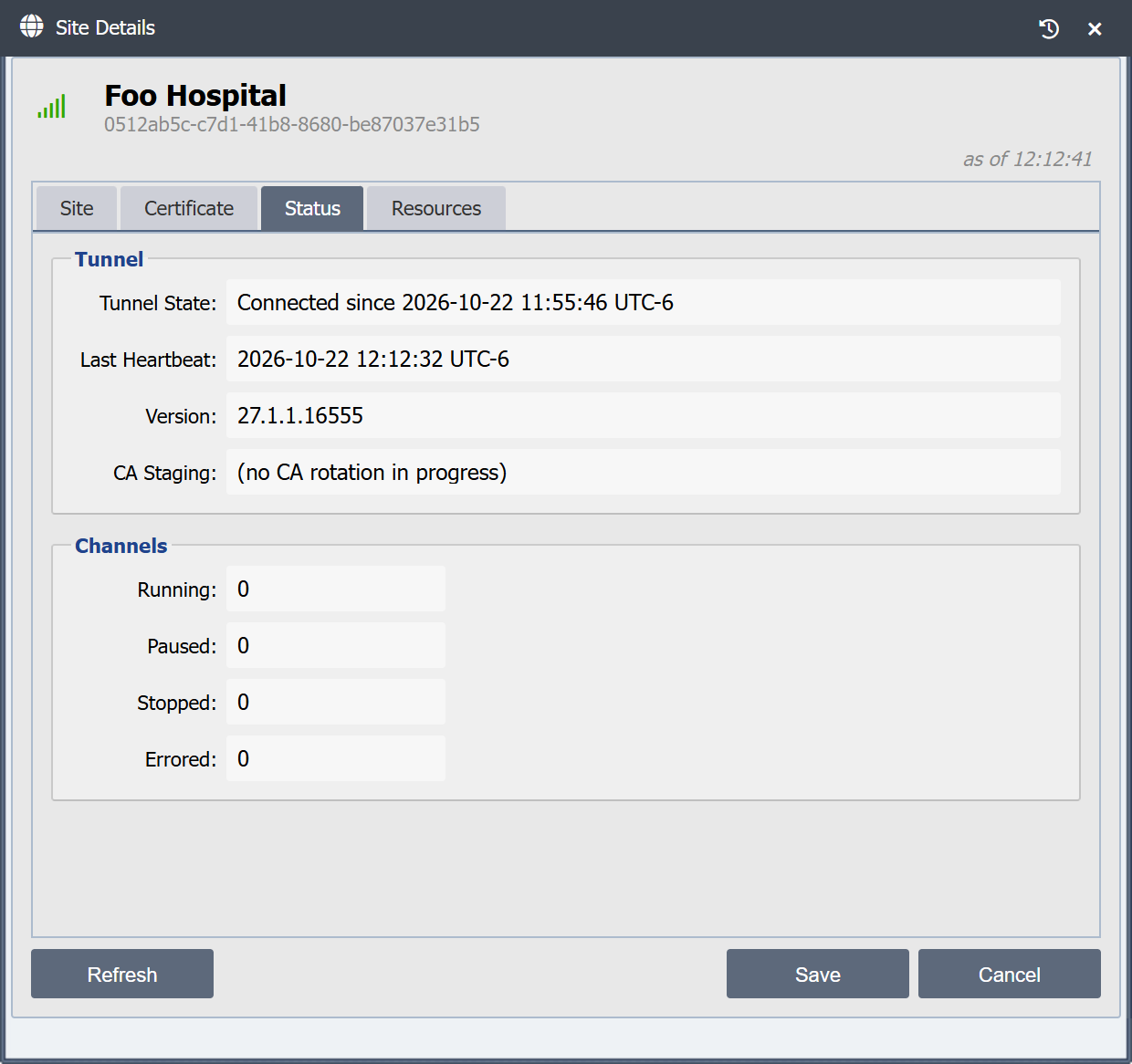
| Field | Source |
|---|---|
| Tunnel State | Connected since YYYY-MM-DD HH:MM:SS, Disconnected, or Disabled for a disabled site |
| Last Heartbeat | Timestamp of the most recent heartbeat received |
| Version | The version the site runs, reported in the heartbeat |
| CA Staging | The site's part in an internal-CA rotation: (no CA rotation in progress), New CA staged; awaiting confirmation, New CA trusted (confirmed <time>), or Failed: <reason> |
| Channels Running / Paused / Stopped / Errored | Channel state summary from the heartbeat |
Resources tab
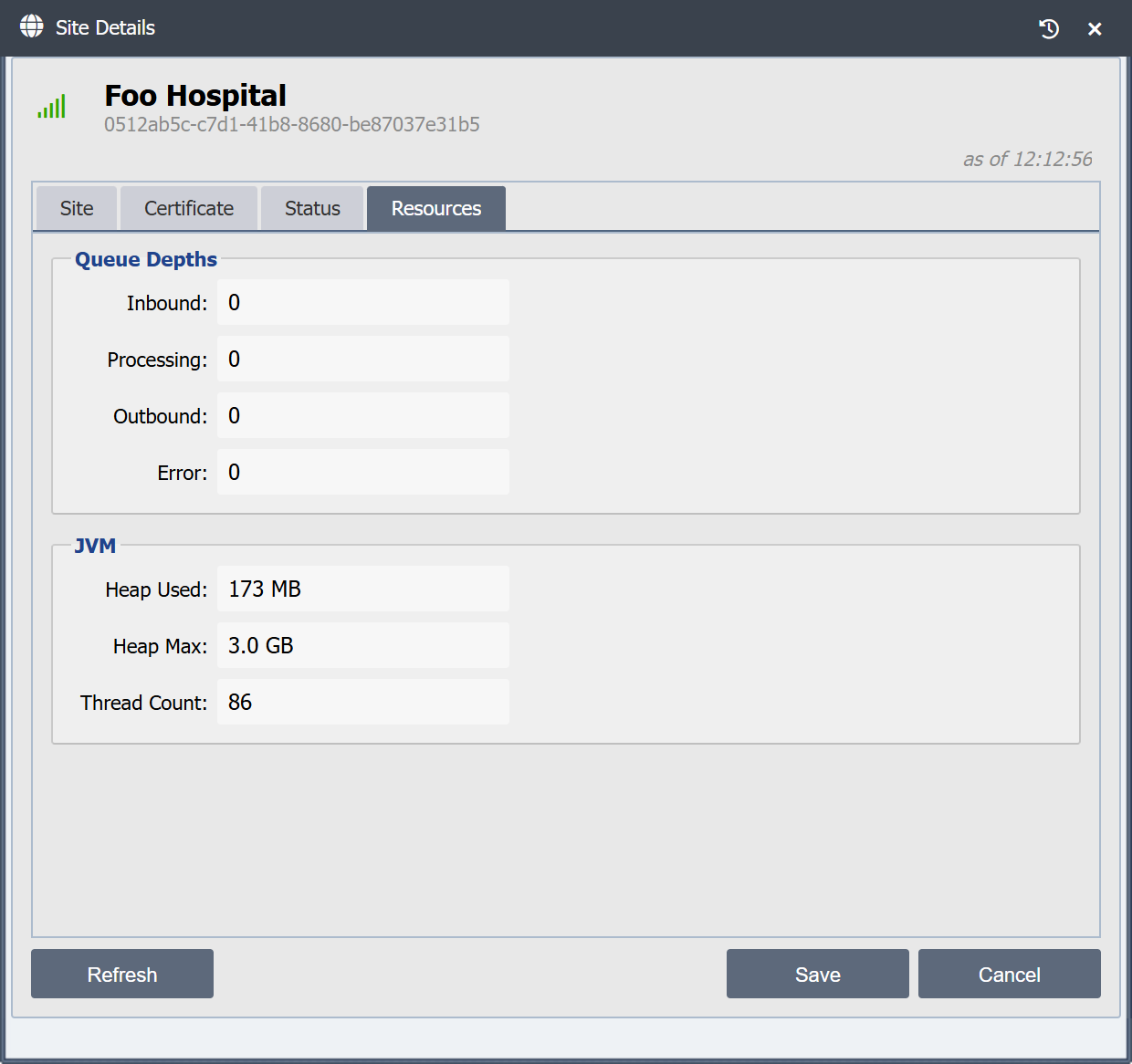
| Field | Source |
|---|---|
| Inbound / Processing / Outbound / Error | Aggregate queue depths across all channels on the site |
| Heap Used | Most recent JVM heap usage reported in the heartbeat |
| Heap Max | Configured -Xmx |
| Thread Count | JVM thread count |
Heap and queue values are rendered in human-readable form (KB / MB / GB, comma-separated thousands).